
⚡ Productivity 🛠️ AI Tools 🔥 Trending 🆕 2026 Guide ✅ Updated April 2026

AI for Professionals: Save 10+ Hours a Week Using These Tools Real workflows, practical examples, and the exact tools worth your time in 2026

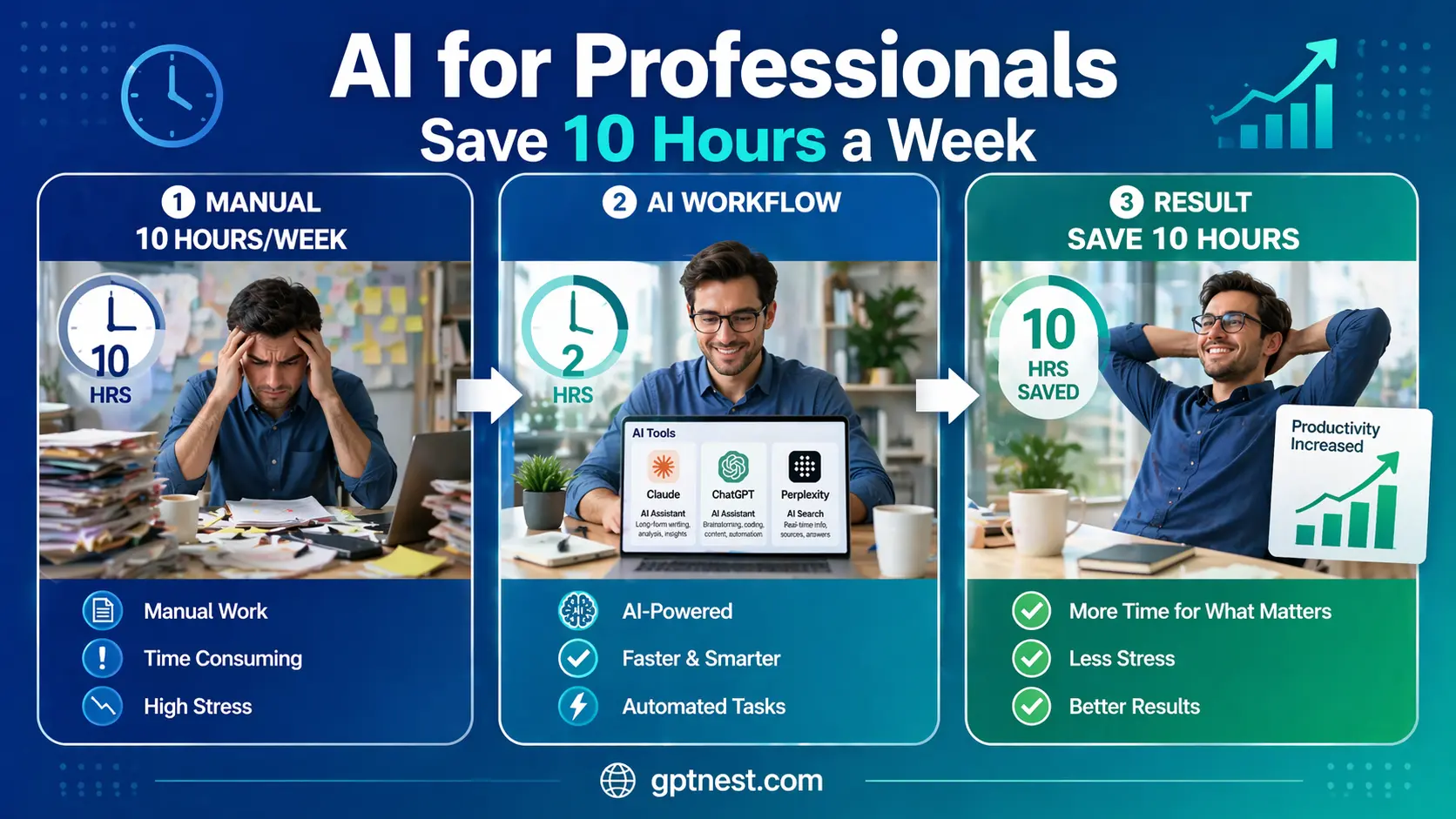
AI for professionals: Professional using productivity tools at a modern desk to save time in 2026

The professionals saving the most time with AI in 2026 aren’t the ones using the most tools — they’re the ones using the right tools for the right tasks. If you’ve tried AI tools before and walked away unimpressed, there’s a good chance the issue wasn’t the tool. It was the workflow. AI for professionals isn’t about replacing what you do — it’s about compressing the time it takes to do it.

A consultant in Casablanca recently told me she went from spending three hours preparing client reports each week to about 40 minutes — not by cutting corners, but by building a simple AI-assisted process she repeats every time. That’s not exceptional. That’s what a well-built workflow looks like.

This guide breaks down exactly which tasks are worth handing to AI, which tools handle them best, and how to build habits that stick. Whether you’re a lawyer, marketer, project manager, or freelancer, there’s time to be recovered here — probably more than you expect.

✍️ By GPTNest Editorial · 📅 April 21, 2026 · ⏱️ 12 min read · ★★★★★ 4.8/5

Before You Start — 5 Things Worth Knowing

AI doesn’t replace judgment — it speeds up execution. The best professionals use AI to handle the time-consuming parts: drafting, formatting, summarizing. The decisions stay with them.
Repetitive tasks are your biggest opportunity. Look at your week and find what you do the same way every time. Those are the tasks AI handles with the least friction and the most consistent quality.
One good workflow beats ten mediocre experiments. Most people try AI tools for a week, get mixed results, and quit. The time savings compound when you build one reliable process, not when you dabble across ten tools.
Your context is your biggest asset. AI doesn’t know your clients, your industry, or your voice. The more background you give it upfront, the closer its output lands to what you’d actually use.
Always review what AI produces. This isn’t paranoia — it’s professional practice. A one-minute review protects your reputation and often reveals one or two improvements worth making.

10+

Hours Saved Per Week

6

Core Workflow Categories

Faster First Drafts

12m

Average Read Time

What You’ll Learn in This Guide ” AI for professionals “

AI for Professionals: Where You Actually Lose Time Each Week

The tasks bleeding your schedule without you noticing

🎯 Start Here

Before reaching for any AI tool, it helps to be honest about where your week actually goes. Most professionals who track their time are surprised: the biggest losses aren’t in major projects. They’re in the in-between work — drafting emails, writing summaries, preparing for meetings, formatting documents, answering routine questions. It adds up to somewhere between 8 and 15 hours a week for most knowledge workers, and almost none of it requires your deepest thinking.

That’s exactly where AI is useful. Not at replacing strategic decisions or client relationships — but at handling the low-complexity, high-frequency tasks that eat the edges of your calendar. A good starting point is a simple audit: for one week, log every task that takes between 15 minutes and an hour and requires no unique expertise. That list is your AI opportunity map.

High-Frequency Low-Complexity Tasks

Writing first-draft emails and responses. Summarizing long documents or meeting notes. Reformatting content from one medium to another. Preparing slide outlines. Researching background before meetings. Creating status updates and reports. Each of these can be handled faster with AI — often 3x to 5x faster.

The 15-Minute Rule

Any recurring task that takes 15+ minutes and follows a predictable structure is worth building an AI workflow for. The break-even point comes after just two or three uses. After a month, you’ve recovered meaningful time that compounds across every subsequent week.

💡 Quick Audit

Open your calendar and email from last week. Highlight every task that was routine, repetitive, or could have been done adequately by someone with much less experience than you. That highlighted list is where AI belongs in your workflow.
Writing and Communication — The Biggest Win

Where most professionals recover the most hours, fastest

Writing is the single highest-leverage area for AI in professional life. Not because AI writes better than you — it doesn’t know your voice, your relationships, or your context. But because first drafts are painful and time-consuming, and a serviceable first draft takes the worst of that pain away. You’re left editing, not staring at a blank page.

The most common use cases: client proposals, follow-up emails after calls, status updates to stakeholders, LinkedIn posts, internal memos, and performance review summaries. These all share a structure. Once you’ve built a prompt template for each, the time cost drops dramatically. A proposal that used to take two hours might take 35 minutes: 10 minutes of context setup, 15 minutes of AI generation and refinement, 10 minutes of personal review and edits.

Email Drafts — A Practical Workflow

When you need to write a sensitive or complex email, start with a 3-sentence brain dump to AI: what happened, what you want to say, and what outcome you need. Ask for a draft in your preferred tone. Edit the top and bottom paragraphs — those are where AI tends to be weakest. Keep the structured middle.

Proposals and Client Documents

Build a context block once: your service, your typical client profile, your differentiation, and your tone. Pair it with a task each time: “Draft a proposal section on our approach to [topic] for a [type of client] in [industry].” This context block does most of the heavy lifting so you don’t re-explain yourself every session.

📖 Real Case — HR Manager, Casablanca, 2026

An HR manager at a mid-size logistics company spent around four hours each month writing performance review summaries for her team. The formats were consistent, the language was predictable, and the thinking was light — but it took forever because she started from scratch each time. She built a single AI prompt template using anonymized key points and her standard review language. The monthly batch now takes under an hour. She didn’t outsource her judgment — she outsourced the formatting and phrasing, which is exactly what AI is good at.

Research and Summarization at Speed

From 90-minute deep dives to 15-minute briefings

⚡ High Impact

Reading and synthesizing information is one of the most time-intensive parts of professional work — and one of the most automatable. Whether you’re preparing for a client meeting, evaluating a vendor, staying current on an industry topic, or reviewing a long contract, AI can compress hours of reading into minutes of useful briefing.

The key is knowing what to ask for. “Summarize this” produces a mediocre summary. “Summarize this for a non-technical executive, highlight the three things most likely to affect our decision, and flag any risks buried in the details” produces something you can actually use. The specificity of the ask determines the usefulness of the output.

Document Summarization — What Works

Paste a long report, contract, or article and ask for a structured briefing: key findings, implications for your situation, and anything ambiguous or risky. For contracts, ask specifically: “Flag any clauses that are unusual, one-sided, or could create liability for the client.” This surfaces what matters without reading line by line.

Pre-Meeting Research

Before any important meeting, spend five minutes giving AI the context: who you’re meeting, what their company does, what the meeting is about, and what you already know. Ask for: three things to know about this company, two potential concerns they might raise, and one question you should ask. It’s not perfect, but it’s much better than walking in cold.

✅ The Briefing Habit

For any document over four pages, don’t read it yourself first. Give it to AI with a specific brief: “Extract the decisions I need to make, the information that supports each decision, and anything requiring follow-up.” This changes how you read entirely — you’re reviewing conclusions instead of searching for them.

Meetings, Notes, and Follow-Ups

The workflow most professionals overlook

Meetings themselves aren’t usually the problem — it’s everything that happens after them. Writing up notes, identifying action items, sending follow-up emails, and updating project trackers can easily consume 20–30 minutes per meeting. For someone with six meetings a week, that’s two to three hours of administrative overhead that AI handles reliably.

The simplest version: use a transcription tool during the meeting, then paste the transcript into your AI tool with a clear prompt. Ask for: a summary of what was discussed, a list of action items with owners and deadlines, and a draft follow-up email you can send to attendees. The whole post-meeting process takes under five minutes instead of 25.

Transcription Tools Worth Using

Tools like Otter.ai, Fireflies, and the built-in transcription in Zoom or Teams produce text you can immediately feed to an AI for processing. The transcript doesn’t need to be perfect — AI handles messy text fine. What matters is that you’re not typing notes by hand while also trying to participate in a conversation.

The Follow-Up Email Formula

Give AI the meeting context and a transcript or bullet-point notes, then ask: “Draft a follow-up email to all attendees. Include a brief summary, each action item with owner and deadline, and next steps. Tone: professional but warm. Under 200 words.” This draft is usually 85% ready to send after a 60-second review.

📖 Real Case — Project Manager, Rabat, 2026

A project manager running five client projects simultaneously spent nearly three hours every week just on post-meeting administration — notes, action item logs, and follow-up emails. After setting up a simple workflow using a transcription app and Claude, he cut that to about 25 minutes. His clients also started commenting that his follow-ups were more thorough and faster than before. The AI didn’t change his relationships — it gave him the time and consistency to maintain them properly.

Planning, Thinking, and Working Through Problems

AI as a thinking partner, not just a writing assistant

One of the most underused applications of AI for professionals is as a sounding board. Not to get answers — but to think out loud with something that asks good follow-up questions and offers structured perspective. When you’re stuck on a strategic decision, a tricky client situation, or how to structure a complex project, walking through it with AI often surfaces clarity faster than staring at your notes.

The technique is simple: describe the situation as concisely as possible, then ask for a structured analysis. “I’m deciding between two options for [situation]. Here’s what I know: [context]. What are the strongest arguments for each option, what am I probably missing, and what question should I ask myself before deciding?” This prompt structure turns AI into a useful thinking partner rather than just a text generator.

Project Planning — A Practical Use

Give AI the goal, the constraints, the stakeholders, and the deadline. Ask for: a phased plan with milestones, three risks to anticipate, and the two decisions that need to happen first. Use this as a starting scaffold — it won’t be perfect, but it’s a solid structure to refine rather than building from zero.

Pre-Decision Stress Test

Before finalizing any important decision, paste your reasoning into AI and ask it to steelman the opposing view: “Here’s my reasoning for this decision. What’s the strongest case against it, and what would need to be true for this to go wrong?” This surfaces blind spots without requiring a second opinion from a colleague.

The Tools Worth Using in 2026

A short, honest list — not a padded directory

The AI tool landscape in 2026 is crowded, but the tools actually worth building your workflow around haven’t changed dramatically. What matters isn’t which tool is technically most powerful — it’s which one you’ll use consistently and which fits into how you already work. Here’s a grounded overview by use case.

Professional AI productivity tools interface comparison showing writing research and summarization features
Writing and Communication — Claude, ChatGPT

Both handle professional writing well. Claude tends to produce more nuanced long-form drafts and is particularly strong on tone calibration. ChatGPT’s strength is broad flexibility and plugin integrations. For most writing workflows, either works — pick one and master it rather than switching constantly.

Meeting Notes — Otter.ai, Fireflies, Fathom

Fathom is the standout for ease of use and post-meeting summaries — it integrates directly with Zoom and produces clean action-item lists without extra prompting. Otter.ai has broader compatibility. Either pairs well with Claude or ChatGPT for follow-up email generation.

Research and Summarization — Perplexity, Claude

For current-events research and sourced summaries, Perplexity is fast and well-cited. For analyzing documents you already have — contracts, reports, research papers — Claude handles long text particularly well. The combination covers most professional research needs.

Planning and Task Management — Notion AI, Motion

Notion AI integrates AI assistance directly into your existing notes and project docs — useful if you’re already a Notion user. Motion uses AI to auto-schedule your task list around your calendar. For professionals who lose time to scheduling conflicts and task prioritization, Motion is genuinely useful.

⚡ Tasks to Automate vs. Tasks to Keep

A clear breakdown of what AI handles well — and what still needs you.

TaskAI Handles It?How to Use It
First-draft emails✅ Very wellProvide context + tone + outcome needed
Meeting summaries✅ Very wellPaste transcript, ask for summary + action items
Document summarization✅ Very wellSpecify what to extract, not just “summarize”
Client relationship decisions❌ Keep thisAI can research context, not make the call
Strategic positioning⚠️ Assist onlyUse for frameworks and alternatives, not conclusions
Slide outlines✅ Very wellGive the story arc, ask for structure and bullet points
Sensitive negotiations❌ Keep thisUse AI to prep talking points, not to draft the conversation
Research briefings✅ Very wellAsk for sourced summaries with decision-relevant framing

🏆 Pro Tips for Sustaining Your Time Savings

The Weekly Maintenance Checklist

Save every prompt that worked. Build a small document of your best-performing prompts. This becomes your personal playbook — and the quality compounds over time.
Identify one new task to test. Each week, pick one recurring task you haven’t tried with AI yet. Run a single experiment. Most will save time. A few won’t — both outcomes are useful data.
Review everything before sending or presenting. A consistent 60-second review protects your professional reputation and keeps your voice in the output. Never skip it.

Habits Worth Starting This Week

Build your context block for the task you repeat most — save it as a text snippet for instant access
Use AI for your next post-meeting follow-up email and time how long it takes
The next time you’re staring at a blank document, give AI a 3-sentence brief and start from its draft instead
Pick one long document you’ve been avoiding reading — feed it to AI and ask for a decision-ready briefing

✅ The One Change Worth Making Today

Identify the single task that takes the most time and requires the least unique thinking in your workweek. Build one AI workflow for it this week — a context block, a prompt template, a repeatable process. Use it three times. By the third time, you’ll spend more time refining than building. That’s when compounding starts.

Saving 10 hours a week with AI isn’t about becoming a power user or mastering every tool. It’s about being deliberate: choosing the right tasks, building simple repeatable workflows, and trusting the process long enough for it to become automatic. The professionals doing this best aren’t working differently in any dramatic sense — they’ve just stopped spending skilled time on unskilled work.

The tools are available. The use cases are clear. The only thing left is deciding which hour of your week you want back first — and building the workflow that recovers it. Start with one task, one tool, one week. The rest follows naturally.

⚡ Advanced Tips for Getting Even More From AI

💡 Use Templates, Not One-Off Prompts

One-off prompts produce one-off results. A saved template prompt — with your context block, your tone preferences, and your typical format requirements — produces consistent results every time. The investment is 20 minutes to build it once and then years of consistent, reliable output.

✅ Tell AI What You Already Decided

When asking for help with a document or decision, start with what’s already settled: “I’ve decided to go with Option B. I don’t need you to evaluate that decision — I need help drafting the announcement to my team.” Removing open questions from the scope produces sharper, more useful output immediately.

⚠️ Don’t Use AI for Tasks That Require Your Credibility

There are moments in professional life where your words need to be unmistakably yours — difficult conversations, personal references, sensitive negotiations. AI can help you prepare for these, but the actual communication should come from you. The distinction between using AI as a thinking tool and using it as a substitute for your voice is one worth protecting deliberately.

More AI Productivity Resources

Scroll to Top