๐Ÿ’ผ Workplace AI โšก Productivity ๐Ÿ”ฅ Trending ๐Ÿ†• 2026 Guide โœ… Updated April 2026

How to Use AI Tools at Work to Boost Productivity (Step-by-Step Guide) Practical strategies, real workflows, and honest advice for getting more done โ€” without burning out

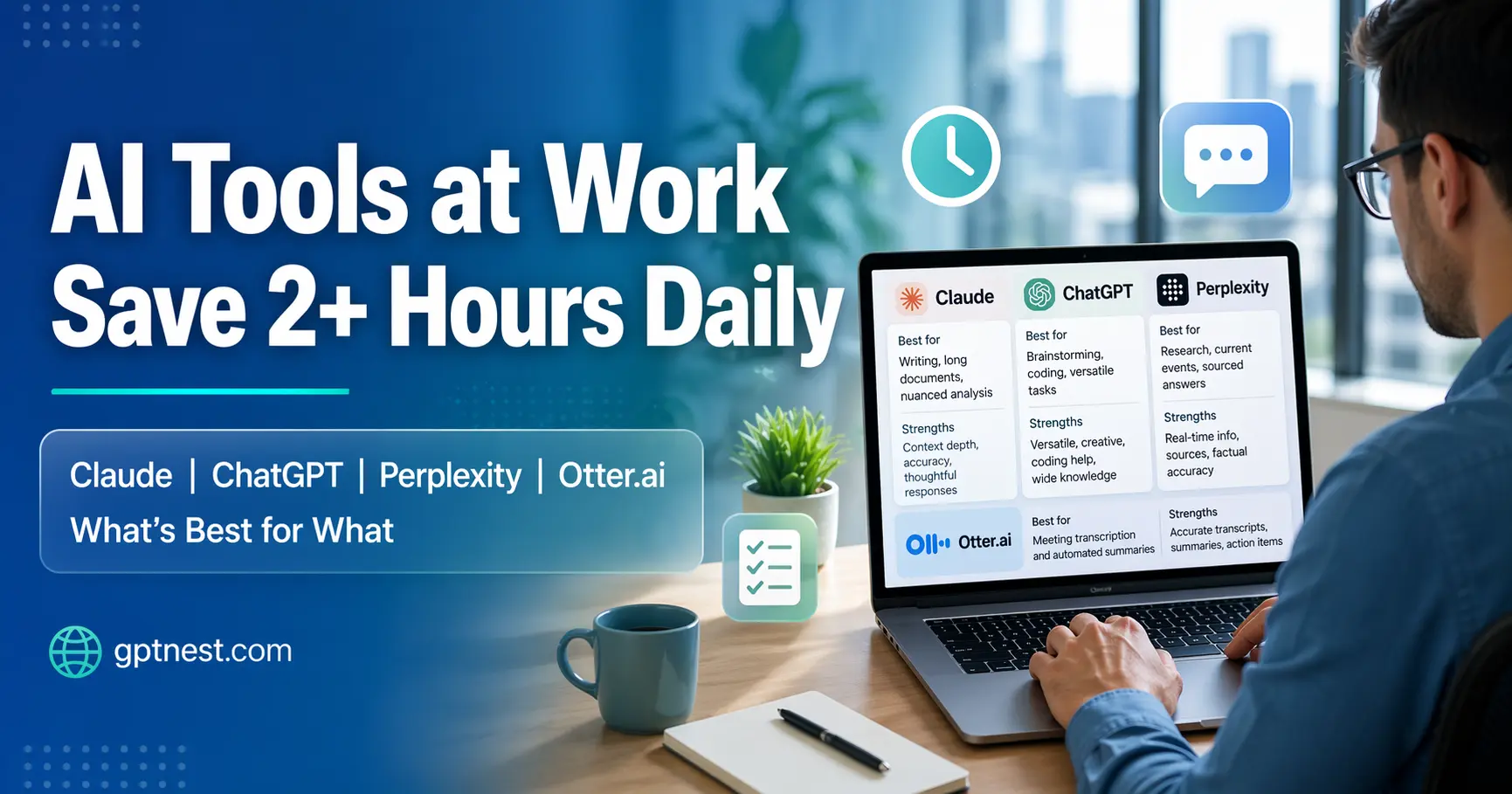
Professional using AI productivity tools at work on a laptop in a modern office environment 2026

If you’ve been hearing that AI tools at work can save hours every week but haven’t quite figured out where to start โ€” you’re not alone. Most people either dive in randomly, get underwhelming results, and give up, or they hear so many options that they freeze entirely. This step-by-step guide cuts through that noise. It shows you how to use AI tools at work in ways that actually move the needle, whether you’re handling emails, reports, meetings, or creative projects.

The goal here isn’t to automate your job out from under you. It’s to clear out the repetitive, draining tasks that consume your day โ€” so you have more time and energy for the work that actually needs your judgment, your relationships, and your expertise. That’s a meaningful shift, and it’s available right now with tools most people already have access to.

This guide works whether you’re a manager, a freelancer, a team member, or someone who just started a new role and wants to hit the ground running. No technical background needed. Just a willingness to build a few new habits.

โœ๏ธ By GPTNest Editorial ยท ๐Ÿ“… April 21, 2026 ยท โฑ๏ธ 12 min read ยท โ˜…โ˜…โ˜…โ˜…โ˜… 4.8/5

Before You Read โ€” 5 Things That Will Change How You Work With AI

AI is a collaborator, not a replacement. The most productive people use AI the way a senior employee uses a capable intern โ€” to handle the gruntwork while they focus on the decisions that matter.
Start narrow. Pick one task you do every day that’s repetitive and time-consuming. That’s your entry point. Don’t try to overhaul everything at once.
You still need to review everything. AI speeds up production, not judgment. Always read what it produces before sending, presenting, or publishing. Your name is on it.
Better input = better output. The most common mistake is giving vague instructions and expecting precise results. Context, constraints, and format guidance make a dramatic difference.
Small habits compound fast. Saving 20 minutes per day on emails doesn’t sound exciting. Over a year, it’s more than 80 hours. That’s two full work weeks returned to you.

6

Core Workflow Areas

8+

Practical AI Use Cases

2hrs

Avg. Daily Time Saved

12m

Average Read Time

What You’ll Learn in This Guide ” how to use AI tools at work “

Where to Start โ€” How to Use AI Tools at Work for Your Specific Job

You don’t need ten tools โ€” you need the right one or two

๐Ÿš€ Start Here

Before rushing to sign up for every AI service you’ve seen mentioned online, take five minutes to think about what actually slows you down at work. Is it writing? Responding to messages? Preparing for meetings? Summarizing documents? Each of those pain points has a tool โ€” or a feature within a tool โ€” that addresses it directly.

For most knowledge workers, a capable general-purpose AI assistant like Claude, ChatGPT, or Gemini covers 80% of daily needs: writing, editing, summarizing, brainstorming, and answering questions. Specialized tools like Otter.ai (meeting transcription), Notion AI (document management), or Perplexity (research) are worth adding once you’ve built a baseline habit with a general tool first.

Choose Your Starting Point

You write a lot: Start with Claude or ChatGPT for drafting and editing. You’re in meetings constantly: Start with an AI note-taker like Otter or Fireflies. You do a lot of research: Start with Perplexity. You manage a team: Start with AI inside the tools you already use (Notion, Slack, Google Workspace).

The One-Tool Rule for Beginners

Commit to one AI tool for 30 days before adding another. This sounds restrictive, but it pays off. You’ll learn the tool deeply, build real habits, and actually notice time savings โ€” rather than spending that time figuring out multiple dashboards. Depth beats breadth early on.

๐Ÿ’ก Key Insight

The best AI tool for your work is the one that fits into how you already work โ€” not the one with the most features. Integration and ease of access matter more than raw capability when you’re building a new habit.
Using AI to Handle Email and Communication Faster

The highest-ROI use case for most office workers

For most professionals, email is the black hole of the workday. It demands constant attention, takes longer to write well than it should, and rarely moves a project forward directly. This is where AI delivers some of its most immediate, measurable value.

Rather than drafting every email from a blank screen, describe what you need to communicate โ€” the context, recipient, and tone โ€” and let AI produce a solid first draft. You then edit for accuracy and voice. What used to take 15 minutes takes 3. Multiply that across a day of email and the savings become real very quickly.

Practical Email Use Cases

Following up on a proposal: Give AI the background and ask for a professional, direct follow-up. Declining a request diplomatically: Describe the situation; AI handles the wording without you agonizing over tone. Summarizing a long thread: Paste the email chain and ask for a 3-bullet summary of what’s been decided and what’s pending.

The Context Block for Email

Build a short “context block” for your most common email types. For example: “I’m a project manager at a mid-size software agency. My clients are non-technical business owners. I write in a friendly but professional tone. No jargon. Keep emails under 150 words.” Paste this before any email request and watch the quality jump immediately.

๐Ÿ“– Real Case โ€” Operations Manager, Casablanca, 2026

An operations manager responsible for coordinating between three departments was spending nearly 90 minutes each morning on email alone. She started using Claude to draft routine update messages and follow-ups, spending 3 minutes on instructions instead of 12 on writing. Within two weeks, she had cut her email time by half and started using the saved time to catch up on reports she’d been procrastinating on for months. The quality of her emails, she says, also improved โ€” because she was reviewing and editing rather than writing cold.

AI for Writing, Reports, and Document Drafting

From blank page to solid draft in a fraction of the time

๐Ÿ“ High Impact

The blank page problem is one of the most common sources of procrastination at work. Whether it’s a quarterly report, a project brief, a client proposal, or an internal memo โ€” getting started is often the hardest part. AI removes that barrier almost entirely. You don’t have to start from nothing anymore.

The key is to use AI for structure and first drafts, then apply your own knowledge and voice to make it accurate and specific. AI produces a good framework quickly. You bring the details that only you know. Together, that’s faster and often better than either alone.

Step-by-Step: Writing a Report with AI

Step 1: Ask AI to produce an outline โ€” sections, subheadings, what each should cover. Review and adjust. Step 2: Expand one section at a time โ€” paste the outline section and your notes; ask for a draft paragraph. Step 3: Paste the full draft and ask for a tone and flow review. Step 4: Add your specific data, examples, and sign-off. Done.

What AI Handles Well vs. What You Own

AI handles structure, transitions, boilerplate language, formatting, and general explanations well. You own: the specific data and figures, the judgment calls, the recommendations, the relationship context, and anything that requires knowledge of your specific organization or client. Keep that split clear.

โœ… Quick Habit

Next time you have a document to write, spend 2 minutes bullet-pointing what it needs to cover, then give those bullets to an AI tool and ask for an outline. Compare that outline to what you’d have written yourself. Most people find the AI version is faster and at least as good a starting point โ€” often better structured.

Smarter Meetings โ€” Prep, Notes, and Follow-Ups with AI

The tool that makes every meeting more efficient before it starts

Meetings are often where productivity either gets made or lost. AI helps at three distinct points: before the meeting (preparation and agenda), during the meeting (note-taking via transcription tools), and after the meeting (summarizing decisions and generating follow-up actions). Each one is worth doing separately.

Before a meeting, give AI the context โ€” who’s attending, what the goal is, what’s been discussed previously โ€” and ask it to help you structure an agenda. A well-structured agenda saves everyone time. After the meeting, paste your notes or transcript into an AI tool and ask for a clean summary with clear action items and owners. This turns the chaos of raw notes into something useful in under two minutes.

Meeting Prep in 3 Minutes

Tell AI: the meeting purpose, who’s in the room, what outcome you need, and any background context. Ask for a simple agenda with time slots. This alone increases the odds of a focused, on-time meeting significantly โ€” and it signals to attendees that you respect their time.

Post-Meeting Summary Prompt That Works

“Here are my raw notes from today’s meeting. Please summarize in three sections: (1) key decisions made, (2) open questions that need resolution, (3) action items with owner and due date. Keep it under 200 words total.” Paste your notes. Send the output to attendees within 10 minutes of the meeting ending.

๐Ÿ“– Real Case โ€” Product Manager, Remote Team, 2026

A product manager running weekly sprints with a distributed team was spending 30โ€“45 minutes after each meeting writing up notes and action items. She started using an AI transcription tool during calls and a second AI pass to generate structured summaries. The post-meeting note process now takes 5 minutes. Her team reports they actually read the summaries now โ€” because they’re short, clear, and contain exactly what they need to act on. One change, significant improvement in team coordination.

Research and Analysis โ€” Getting Useful Answers Fast

Use AI to accelerate research, not replace your critical thinking

Whether you’re preparing for a client presentation, evaluating a vendor, writing a proposal, or trying to understand a new market, research takes time. AI tools โ€” especially those with web access โ€” significantly compress that time by synthesizing information quickly. The key is knowing when to trust the output and when to verify it.

Use AI to give you a fast orientation on a topic, then go deeper yourself on the parts that matter most. Think of it as the world’s fastest briefing paper โ€” useful for context and structure, but not a substitute for primary sources when the stakes are high.

High-Value Research Prompts

“Give me a concise overview of [topic] for someone who needs to present on it to a non-technical audience. Include the 3 most important things to know and 2 common misconceptions.” This framing consistently produces useful, well-structured orientations rather than generic Wikipedia-style summaries.

When to Verify โ€” Always

For anything involving specific numbers, dates, legal requirements, or claims you’ll present publicly โ€” always verify with primary sources. AI is excellent at explaining, summarizing, and structuring. It’s less reliable on precise factual detail, especially for fast-changing topics. Build that habit early.

Building a Daily AI Routine That Actually Sticks

Turning scattered experiments into consistent productivity gains

Most people try AI a few times, get mixed results, and let the habit fade. The difference between people who get real productivity gains from AI and those who don’t isn’t the tools they use โ€” it’s whether they’ve built a consistent routine. Routine turns occasional wins into repeatable results.

The simplest version: identify three recurring tasks in your week that are time-consuming and mostly mechanical. Build a simple AI workflow for each one. Use it consistently for three weeks. By the end of that period, you’ll have a genuine time buffer โ€” and you’ll naturally see where else AI can help.

A Simple 3-Task Weekly AI System

Monday: Use AI to draft your week’s key communication โ€” team updates, client check-ins, or the report you’ve been putting off. Wednesday: Use AI to prep for Thursday and Friday meetings. Friday: Use AI to summarize the week’s outputs and draft any Monday follow-ups now. Total investment: 20โ€“30 minutes to save 2+ hours.

Save What Works โ€” Build a Prompt Library

When a prompt produces excellent output, save it. A simple document with 10โ€“15 refined prompts for your most common tasks is one of the highest-leverage tools you can build. It takes an afternoon to assemble and pays dividends indefinitely. Most professionals who do this report it becomes one of their most-used work resources.

โšก AI Tools Comparison โ€” What’s Best for What

A practical breakdown of the most commonly used AI tools at work โ€” and what each one does best.

ToolBest ForIdeal User
ClaudeWriting, editing, long documents, nuanced analysisWriters, analysts, managers, consultants
ChatGPTBrainstorming, coding assistance, versatile tasksGeneralists, developers, marketers
PerplexityResearch, current events, sourced answersResearchers, journalists, strategists
Otter.aiMeeting transcription and automated summariesAnyone in frequent meetings
Notion AIDocument generation within a workspaceTeams already using Notion
Gemini (Google)Integration with Gmail, Docs, and SheetsGoogle Workspace users
Copilot (Microsoft)Integration with Office 365, Teams, OutlookMicrosoft 365 users

๐Ÿ† Pro Tips for Staying Sharp While Using AI Daily

The Weekly AI Productivity Checklist

Review your time savings: What task did AI handle this week that you used to do manually? Is it reliable enough to keep using that workflow?
Refine one prompt: Take one prompt from your library and improve it based on what you’ve learned this week. Better prompts compound over time.
Check your thinking: Are you still making the real decisions yourself? AI should speed up your work, not replace your judgment. Keep the balance conscious.

Habits to Build This Month

Build a context block for your top 3 most common AI tasks
Save every prompt that produces great output โ€” review it monthly
Use AI to draft โ€” always review before sending or presenting
Introduce one new AI use case to your workflow per week

โœ… The One Change to Make This Week

Pick the single task that costs you the most time and the least energy every week. Write a 100-word context block describing your situation, your role, and what good output looks like. Then, next time that task comes up, use AI with that context block instead of doing it manually. Track the time difference. That one comparison is usually enough to make the habit permanent.

Learning how to use AI tools at work doesn’t require a course, a certification, or a technical background. It requires the same thing every good work habit requires: a clear starting point, a bit of patience while you calibrate, and the discipline to actually use it consistently rather than just dabbling.

The people getting the most value from AI at work right now aren’t tech enthusiasts or early adopters chasing the latest model. They’re thoughtful professionals who identified a few real problems in their workday and built simple, repeatable solutions. That’s available to you today. Start with one task, this week, and build from there.

โšก Advanced Moves for Getting Even More From AI at Work

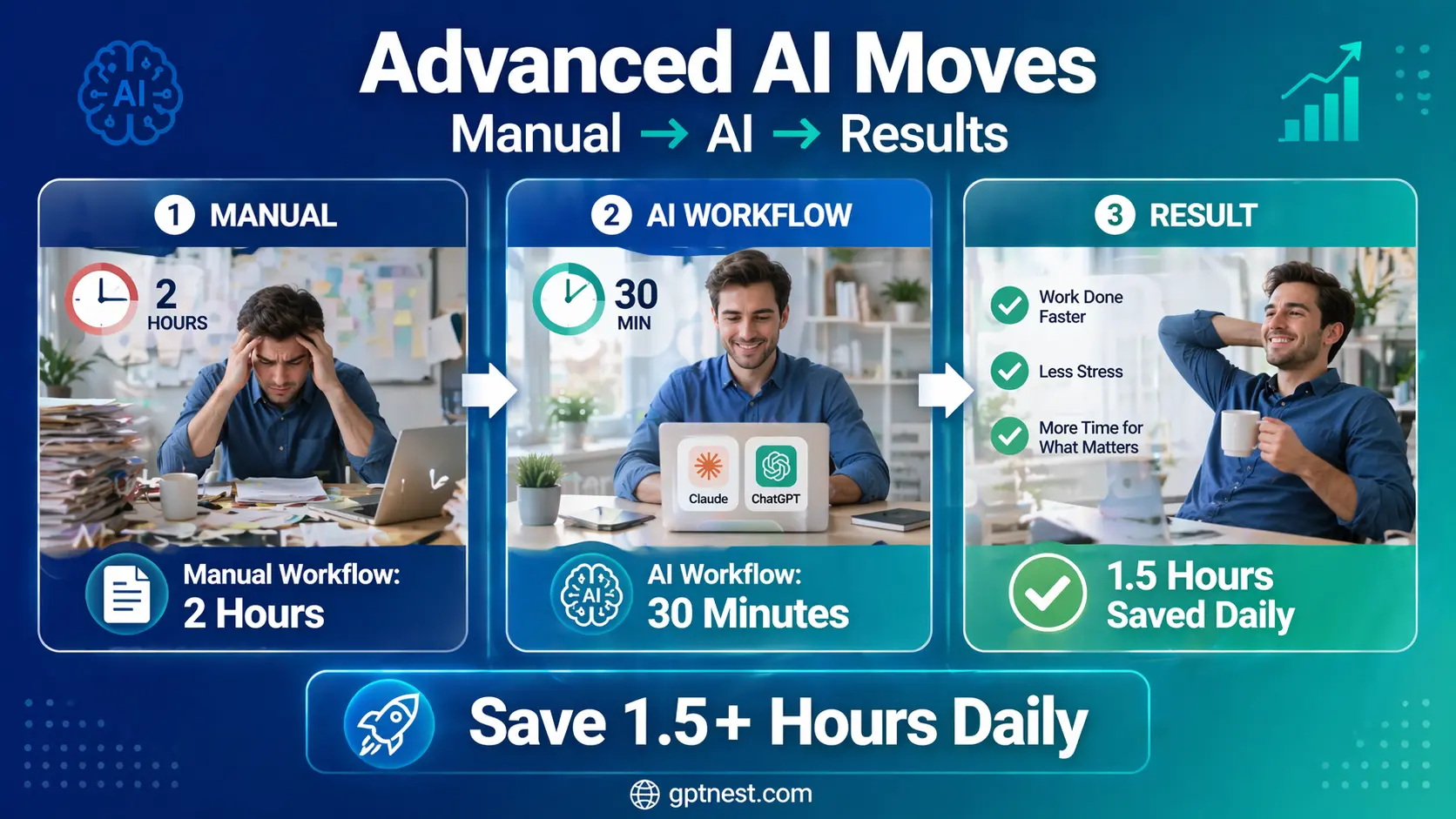
Before and after comparison of workplace task completion time using AI tools versus manual methods

๐Ÿ’ก Chain Prompts for Complex Projects

For large deliverables โ€” a full strategy document, a client proposal, a detailed report โ€” don’t ask AI for everything in one go. Break it into stages: first the structure, then section by section, then a final review pass. Each stage is a separate prompt. Sequential prompts consistently produce better output than one massive prompt, and they let you course-correct as you go.

โœ… Use AI as Your Devil’s Advocate

Before presenting a plan or proposal, paste it into an AI tool and ask: “What are the three strongest objections someone could make to this? What am I missing?” This quick exercise has saved many professionals from embarrassing oversights. It takes two minutes and often surfaces something genuinely useful that you hadn’t considered.

โš ๏ธ Protect Confidential Information

Before pasting anything into an AI tool, check your company’s data policy. Many organizations have guidelines about what can be shared with external AI services. When in doubt, anonymize sensitive details โ€” replace client names, remove financial figures, and describe the situation generically. You can still get highly useful output without exposing anything confidential.

More AI Productivity & Work Guides | how to use AI tools at work

Scroll to Top