๐Ÿค– Local AI ๐Ÿ› ๏ธ Developer Guide ๐Ÿ”ฅ Gemma 4 ๐Ÿ†• 2026 Guide โœ… Updated April 2026

The Complete Developer’s Guide to Deploying the Gemma 4 Model Locally From hardware checks to running your first inference โ€” practical steps for every level

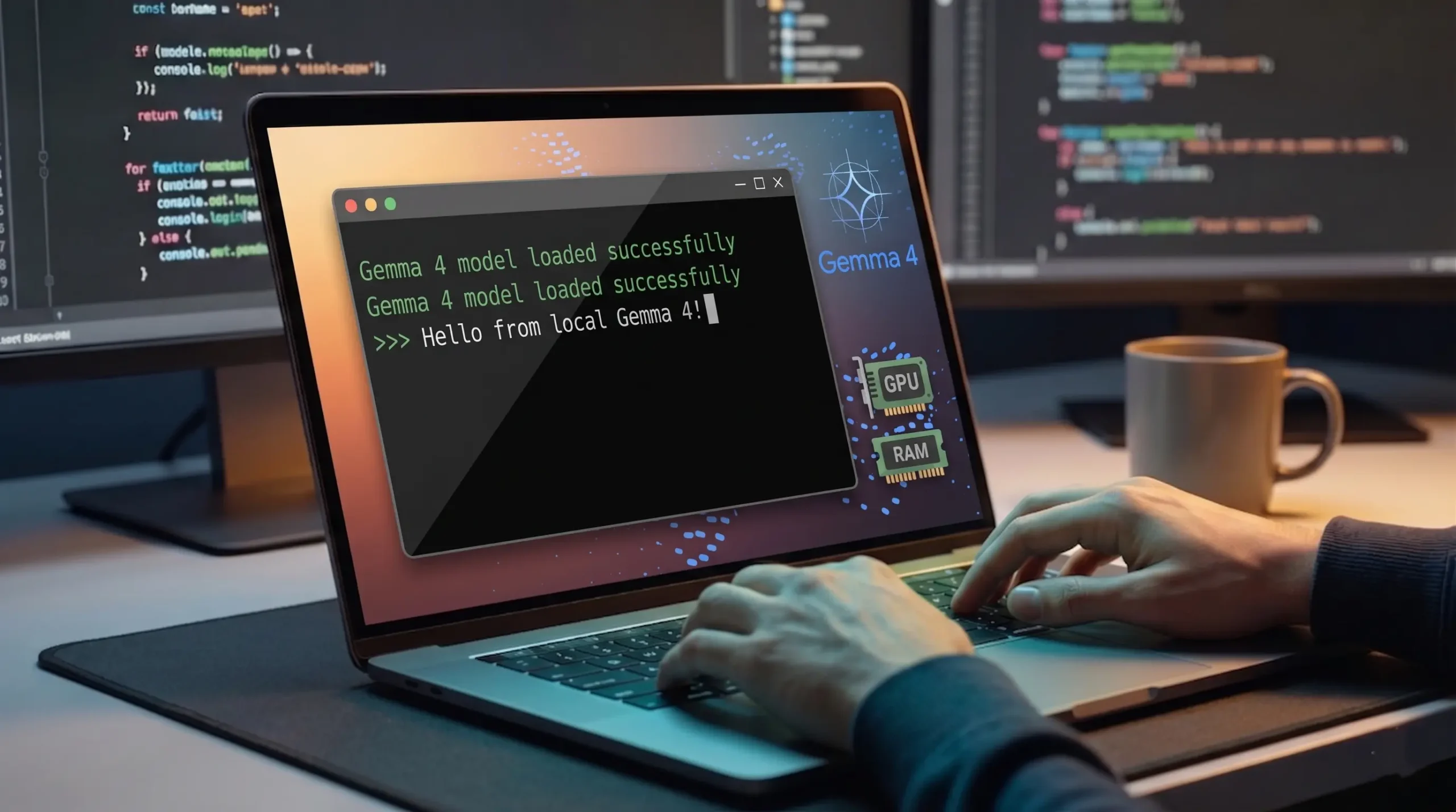
Developer deploying Gemma 4 model locally on a laptop with terminal output

Running a large language model on your own machine used to require deep ML expertise, enterprise-grade hardware, and a lot of patience. With Gemma 4, Google has changed that equation considerably. Deploying Gemma 4 locally is now genuinely achievable for developers with a modern laptop or workstation โ€” and the privacy and cost benefits of running it offline make that setup well worth the effort.

This guide walks you through the entire process: checking your hardware, picking the right tooling, pulling the model weights, and getting to a working inference endpoint. Whether you’re building a local chatbot, integrating a model into an internal tool, or just exploring what Gemma 4 can do without sending data to the cloud โ€” this is where to start.

No assumptions about your ML background. Just practical steps, real commands, and honest notes on what to expect at each stage.

โœ๏ธ By GPTNest Editorial ยท ๐Ÿ“… April 18, 2026 ยท โฑ๏ธ 16 min read ยท โ˜…โ˜…โ˜…โ˜…โ˜… 4.9/5

Before You Start โ€” 5 Things to Know About Gemma 4 Local Deployment

Hardware matters more than you think. Gemma 4’s smallest variants run on 8 GB of VRAM or 16 GB of system RAM. Know your specs before you pull any weights.
Quantization is your best friend. A 4-bit quantized version of Gemma 4 runs on hardware that would choke on the full-precision model. Start there unless you have specific reasons not to.
You need a Hugging Face account. Gemma 4 weights are gated. You’ll need to accept Google’s usage terms on the model page before downloading โ€” takes about 60 seconds.
Ollama makes this significantly easier. For most developers, running Gemma 4 through Ollama removes most of the setup friction. We cover both the Ollama path and the Transformers path.
First inference will be slow. Expect 30โ€“90 seconds on initial load. After the model is in memory, response speeds improve considerably depending on your hardware.

4

Model Size Variants Available

8GB

Minimum VRAM for Q4 Inference

$0

Cost to Run Locally (After Setup)

~15m

Setup Time with Ollama

In This Guide to Deploying Gemma 4 Locally

What Is Gemma 4 and Why Run It Locally?

Google’s open-weight model โ€” offline, private, and free to use

๐Ÿง  Foundations

Gemma 4 is Google DeepMind’s fourth generation of open-weight language models. Unlike the Gemini API, which routes everything through Google’s infrastructure, Gemma 4 gives you the actual model weights to run wherever you want โ€” your laptop, a home server, or a private cloud instance you control.

The lineup currently includes instruction-tuned and base variants across multiple parameter counts. The instruction-tuned versions are what most developers want: they’re designed to follow prompts and have a conversation, which makes them immediately usable for practical projects without fine-tuning.

There are three strong reasons to run Gemma 4 locally rather than through an API. First, privacy โ€” nothing leaves your machine, which matters for internal tools, client data, or any sensitive workflow. Second, cost โ€” once it’s running, inference is free no matter how many tokens you generate. Third, latency โ€” on the right hardware, a local model can respond faster than a remote API with network overhead.

๐Ÿ’ก Who This Guide Is For

If you’re comfortable running terminal commands and have used Python before, you have everything you need. You don’t need ML experience, and you don’t need to understand how the model works under the hood to get it running.

Hardware Requirements โ€” What You Actually Need

GPU, RAM, and storage requirements for every Gemma 4 variant

The hardware question is where most people get confused, so let’s be direct about it. Gemma 4’s smallest quantized variants will run on a modern laptop with 16 GB of system RAM and no dedicated GPU at all โ€” slowly, but they’ll run. If you have a GPU with 8 GB of VRAM or more, you’re in a much better position for usable inference speeds.

Minimum Setup โ€” CPU Only

16 GB system RAM, any modern x86-64 CPU (2019 or newer). Expect 3โ€“8 tokens/second on the 2B quantized model. Suitable for testing, not production workflows.

Recommended โ€” Entry GPU

8 GB VRAM (NVIDIA RTX 3060, 4060, or equivalent). Runs the 4B Q4 model comfortably at 15โ€“25 tokens/second. AMD GPUs work via ROCm but require additional setup steps.

Ideal Setup โ€” Mid-Range GPU

16โ€“24 GB VRAM (RTX 3090, 4090, or A10G). Runs 9B and 27B variants in Q4 or Q8. Suitable for real applications, batch processing, and multi-turn conversations.

Apple Silicon (M1/M2/M3/M4)

Unified memory architecture means a MacBook Pro with 16 GB can run the 4B model at reasonable speeds via Metal acceleration. llama.cpp and Ollama both support this natively.

โš ๏ธ Storage Note

Set aside at least 5 GB of free storage for the 2B Q4 model, 10 GB for 4B, and 20+ GB for larger variants. Model weights are downloaded once and cached โ€” but they’re not small files.

Choosing the Right Gemma 4 Variant

2B, 4B, 9B, or 27B โ€” and base vs. instruction-tuned

Gemma 4 ships in four parameter sizes: 2B, 4B, 9B, and 27B. Each comes in two flavors โ€” a base model trained on raw text, and an instruction-tuned (IT) version trained to respond to prompts. For almost every practical use case, you want the instruction-tuned version.

The 4B-IT is the sweet spot for most developers. It fits comfortably in 8 GB of VRAM at Q4 quantization, delivers noticeably better reasoning than the 2B, and runs fast enough for interactive applications. Start here unless your hardware forces you lower or your use case specifically benefits from the 9B’s additional capacity.

โœ… Quick Decision Guide

CPU-only machine โ†’ start with 2B Q4. 8 GB VRAM โ†’ 4B Q4 or Q8. 16 GB VRAM โ†’ 9B Q4. 24 GB+ VRAM โ†’ 27B Q4. If you want multimodal support (image input), use the multimodal-capable variants where available โ€” check the Hugging Face model page for the latest release details.

Method 1 โ€” Deploy Gemma 4 with Ollama

The fastest path from zero to running inference โ€” ~15 minutes

โšก Recommended

Ollama is an open-source tool that packages model management, inference serving, and a local REST API into a single clean interface. It handles quantization, GPU detection, and memory management automatically. For most developers, this is the right starting point โ€” it removes the complexity of managing model files manually.

Step 1: Install Ollama

On macOS or Linux, open your terminal and run:

curl -fsSL https://ollama.com/install.sh | sh

On Windows, download the installer from ollama.com. After installation, verify it’s running:

ollama --version

Step 2: Pull the Gemma 4 Model

This downloads the model weights and sets up the runtime. Ollama uses its own quantized GGUF format automatically:

ollama pull gemma4:4b

For the 2B version: ollama pull gemma4:2b โ€” or the 9B: ollama pull gemma4:9b

Step 3: Run the Model

ollama run gemma4:4b

This drops you into an interactive chat session. Type a message and press Enter. To exit, type /bye.

๐Ÿ’ก Local API Endpoint

Ollama also exposes a local REST API at http://localhost:11434 โ€” compatible with the OpenAI API format. This means you can point any tool that supports OpenAI-compatible endpoints (LangChain, Open WebUI, Continue.dev) directly at your local Gemma 4 instance with no code changes.

Method 2 โ€” Deploy with Hugging Face Transformers

Full Python control โ€” best for custom pipelines and fine-tuning workflows

If you need to integrate Gemma 4 into a Python application, run it as part of a data pipeline, or eventually fine-tune it โ€” the Hugging Face Transformers library gives you full programmatic control.

Prerequisites

pip install transformers accelerate torch bitsandbytes huggingface-cli login

The huggingface-cli login command is required because Gemma 4 is a gated model. You’ll need a Hugging Face account and must accept Google’s terms on the model card page at huggingface.co/google/gemma-4-4b-it before the download will succeed.

Loading and Running the Model

from transformers import AutoTokenizer, AutoModelForCausalLM import torchmodel_id = "google/gemma-4-4b-it"tokenizer = AutoTokenizer.from_pretrained(model_id) model = AutoModelForCausalLM.from_pretrained( model_id, torch_dtype=torch.bfloat16, device_map="auto", load_in_4bit=True # enables 4-bit quantization )messages = [{"role": "user", "content": "Explain Docker volumes in simple terms."}] inputs = tokenizer.apply_chat_template(messages, return_tensors="pt").to(model.device)outputs = model.generate(inputs, max_new_tokens=256) print(tokenizer.decode(outputs[0], skip_special_tokens=True))

โš ๏ธ Memory Tip

The load_in_4bit=True flag via bitsandbytes is what makes the 4B model fit in 8 GB of VRAM. Without it, the model loads in bfloat16 and requires roughly 9โ€“10 GB. Always use quantization unless you have a specific reason to need full precision.

Method 3 โ€” Deploy with llama.cpp

CPU-optimized inference โ€” great for low-VRAM or no-GPU setups

llama.cpp is a C++ inference engine optimized for running quantized models on CPU with optional GPU offloading. It’s particularly useful on Apple Silicon, machines without a GPU, or when you need the smallest possible resource footprint.

After building llama.cpp from source (full instructions at github.com/ggerganov/llama.cpp), download a GGUF-format Gemma 4 model from Hugging Face โ€” look for community quantized versions tagged as Q4_K_M for the best quality-to-size ratio. Then run:

./llama-cli -m ./gemma-4-4b-it-Q4_K_M.gguf \ -n 256 \ --temp 0.7 \ -p "You are a helpful assistant. [user]\nWhat is a REST API?\n[/user]"

โœ… When to Choose llama.cpp

Choose this path if you’re on a Mac with Apple Silicon (Metal acceleration is excellent), if you want to embed inference in a C/C++ application, or if you need very granular control over memory usage and thread count. Ollama actually uses llama.cpp under the hood โ€” this just gives you direct access to the same engine.

Running Your First Inference โ€” What to Expect

Load times, token speeds, and what normal looks like

First load always takes longer than subsequent ones. The model weights are being read from disk and loaded into memory โ€” on a fast NVMe drive, expect 15โ€“30 seconds for the 4B model. On a slower HDD, this can stretch to 60โ€“90 seconds. This only happens on the first request after starting the server; subsequent requests respond much faster.

Once loaded, a healthy sign is seeing tokens appear progressively rather than waiting for the entire response. If your output appears all at once after a long pause, check whether streaming is enabled in your client. Both Ollama and the Transformers library support streaming โ€” it makes the experience feel much more responsive even at the same tokens-per-second.

๐Ÿ“– Real Deployment โ€” Backend Developer, Rabat, 2026

A developer building an internal HR tool needed to summarize employee feedback forms without sending data to external APIs. He deployed Gemma 4 4B on a workstation with an RTX 3070 using Ollama, pointed his Python backend at the local API endpoint, and had a working summarization pipeline in an afternoon. Processing 50 forms per day takes about 8 minutes. Zero cloud cost, zero data privacy concerns.

Real Use Cases for Local Gemma 4 Deployment

What developers are actually building with local Gemma 4

Local deployment unlocks use cases that a cloud API simply can’t support โ€” either due to data restrictions, latency requirements, or cost at scale. Here are the most practical ones developers are using Gemma 4 for right now.

Private Document Analysis

Legal, medical, and financial documents can’t go through external APIs in many jurisdictions. Local Gemma 4 handles summarization, extraction, and Q&A on sensitive documents without any data leaving the machine.

Offline Code Assistant

Integrate Gemma 4 with Continue.dev or a similar VS Code extension for an offline coding assistant. Useful in air-gapped development environments or when working on proprietary codebases with IP restrictions.

Batch Content Processing

Running hundreds of classification, tagging, or transformation tasks on local data is far cheaper than API calls at scale. A pipeline processing 10,000 records per night doesn’t accumulate any API costs.

Local RAG Pipelines

Combine Gemma 4 with a local vector database (Chroma, Weaviate local) to build a retrieval-augmented generation system over your own documents โ€” no external services at any point in the pipeline.

โšก Deployment Method Comparison

Which setup path is right for your situation โ€” April 2026.

MethodSetup ComplexityBest ForGPU Required?
OllamaLow โ€” ~15 minutesMost developers, interactive useNo (recommended)
HF TransformersMedium โ€” ~45 minutesPython pipelines, fine-tuning prepRecommended
llama.cppMedium-High โ€” 1โ€“2 hoursApple Silicon, CPU-only, embeddingNo
Open WebUI + OllamaLow โ€” adds 10 minutesLocal chat interface, team useNo (recommended)
vLLMHigh โ€” production setupHigh-throughput serving, multi-userYes (required)

๐Ÿ† Pro Tips for Better Local Gemma 4 Performance

Performance Optimizations

Use Flash Attention: Add attn_implementation="flash_attention_2" in Transformers for 20โ€“40% faster inference on compatible GPUs.
Set context length wisely: The default 8K context is fine for most tasks. Only increase it if your use case genuinely needs longer context โ€” it costs memory linearly.
Keep the model loaded: In Ollama, the model stays in memory for 5 minutes by default. Set OLLAMA_KEEP_ALIVE=-1 to keep it loaded indefinitely if you’re running a continuous service.

Common Mistakes to Avoid

Downloading the base model when you need the instruction-tuned version โ€” look for the -it suffix
Skipping the chat template โ€” Gemma 4 IT requires specific input formatting; plain strings give degraded results
Running out of VRAM mid-generation because system RAM was also full โ€” close other GPU applications before loading
Using max_new_tokens too high on CPU-only setups โ€” start with 128โ€“256 and increase once you know your speed baseline

โœ… The Practical Starting Workflow

Install Ollama โ†’ pull gemma4:4b โ†’ verify with a quick test prompt โ†’ if it works, set up Open WebUI for a chat interface โ†’ then, when you’re ready to integrate with code, switch to the Transformers library for your actual application. This sequence gets you to a working local model in under an hour and gives you a foundation to build from.

Local AI deployments have crossed a threshold in 2026 where they’re genuinely useful without specialist hardware. The gap between “this is an experiment” and “this is a production tool” has narrowed considerably, and Gemma 4 sits squarely in the range where a developer with a modern laptop can build something real.

Pick your method. Run the model. Build something. The setup takes an afternoon โ€” everything after that is the interesting part.

โšก Pro Tips for Gemma 4 Local Deployment

๐Ÿ’ก Use a System Prompt File

With Ollama, you can create a Modelfile that bakes a system prompt into the model configuration. This means every session starts with your specific persona or instructions without you passing them manually every time โ€” useful for application integrations where behavior needs to be consistent.

โœ… Monitor VRAM Usage

On Linux, use watch -n 1 nvidia-smi while the model is running to track VRAM usage in real time. This tells you immediately how much headroom you have and whether you can increase context length or load a larger variant safely.

โš ๏ธ Thermal Throttling on Laptops

Extended inference sessions on laptops will cause the GPU to throttle under sustained load. For batch processing jobs, consider adding brief pauses between requests and ensure your laptop is plugged in with cooling adequate. Desktop machines with case ventilation handle continuous inference much better.

More Local AI & Developer Guides

Scroll to Top